


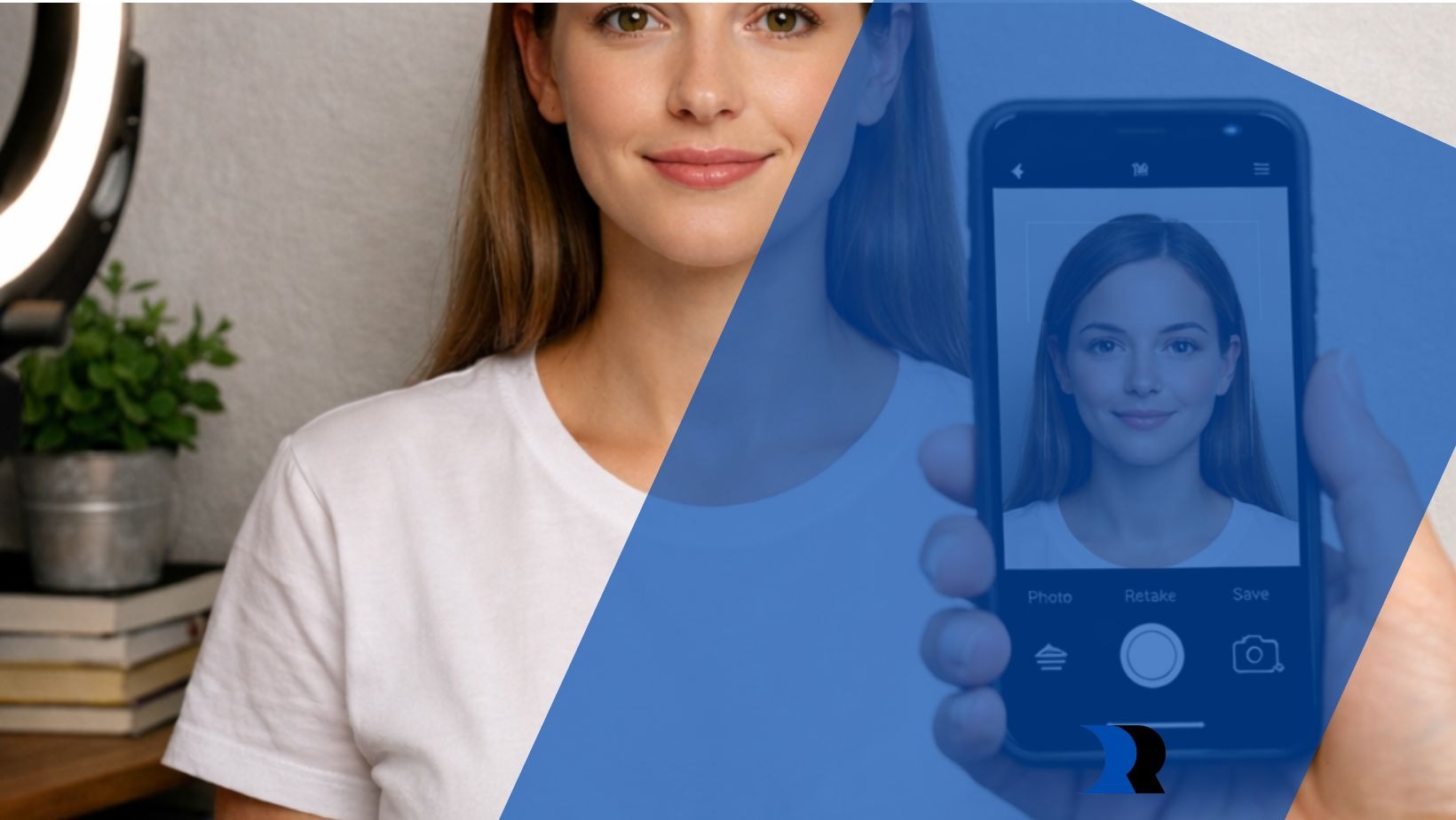
Let’s be honest – passport photos are rarely flattering. Bad lighting, awkward expressions, and expensive studios? No thanks. The good news is that your smartphone is more than capable of taking a passport-ready photo if you set it up the right way.
After trial, error, and a few rejected photos, here’s the simple, no-nonsense method I use to get passport photos accepted on the first try.
1. First Rule: Turn OFF the “Smart” Stuff
Here’s the funny thing – smartphones try way too hard to make us look good, and passport offices absolutely hate that. Before you take a single shot, go into your camera settings and switch off anything that sounds “smart.”
- Turn off Portrait mode
- Disable beauty filters, face smoothing, and AI enhancements
- Switch off HDR and Night mode
- Stick to normal Photo mode only
Think natural, boring, and official. This is a passport photo, not an Instagram post.
2. Use the Right Camera (Yes, It Really Matters)
Not all smartphone lenses are created equal, and choosing the wrong one can completely mess up your photo.
- Always use the main (1×) camera
- Never use the ultra-wide lens (it makes your face look stretched)
- Skip the telephoto lens too
Also, set your phone to maximum resolution and highest image quality. The more detail you capture, the fewer headaches you’ll have later.
3. My Go-To Smartphone Camera Settings
If your phone has Pro or Manual mode, you’re in luck. These settings have never failed me:
- ISO: As low as possible (20–100)
- Shutter speed: 1/60 to 1/125
- White balance: Daylight
- Exposure: Slightly lowered (-0.3 to -0.7 EV)
No Pro mode? Totally fine. Just tap on your eyes to focus, and lock exposure if your phone allows it.
4. Lighting: Natural Light Is Your Ideal Friend
If passport photos go wrong, lighting is usually the reason.
My simple setup:
- Stand facing a window during the day
- Use soft, indirect light (avoid harsh sunlight)
- Turn off overhead lights
- Never use the phone flash
No daylight available?
- Place two lamps at 45° angles on either side of your face
- Soften the light with paper or a thin cloth
Quick tip: A white wall or bedsheet opposite the light source works like a natural reflector and evens everything out.
5. Background & Phone Position
Keep things clean and simple.
- Use a plain white or off-white wall
- Make sure there are no shadows behind you
- Keep the phone (or tripod) at eye level
- Stand about 1–1.5 meters (3–5 feet) away
Center your head and shoulders and leave a little extra space around your head for cropping later.
6. Pose Like a Passport Pro
This is not the time to smile.
- Neutral expression
- Mouth closed
- Eyes open, looking straight at the camera
- Head straight (no tilt)
- Hair away from your face
- No glasses (unless officially allowed)
I usually take 5-10 photos and pick the best one.
7. Editing & Cropping
Editing should be minimal, but this is where a tool like 123passportphoto.com makes life easier.
After taking your photo, you can:
- Upload it to 123passportphoto.com
- Select your country and document type
- Let the tool crop to the correct size, adjust proportions, and check compliance
What you should not do (even with tools):
- Smooth skin
- Change facial features
- Over-edit brightness or colors
The goal is compliance, not perfection.
8. Check the Country Rules (Always)
Even with great lighting and tools, country rules still matter.
Every country has its own requirements for:
- Photo size (2×2 inches, 35×45 mm, etc.)
- Head size and positioning
- Background color
- Glasses and headwear
Online photo tools help with sizing, but always double-check the official government guidelines before submitting.
Final Thoughts
Taking a passport photo with your smartphone is totally doable. Focus on natural lighting, the main camera, no filters, and a neutral pose. Once you’ve got a clean photo, using an online tool can save time and reduce the risk of rejection-without needing a studio visit.


)